RaiseExamScores Advisor Flow
1) Visit the RaiseExamScores Website
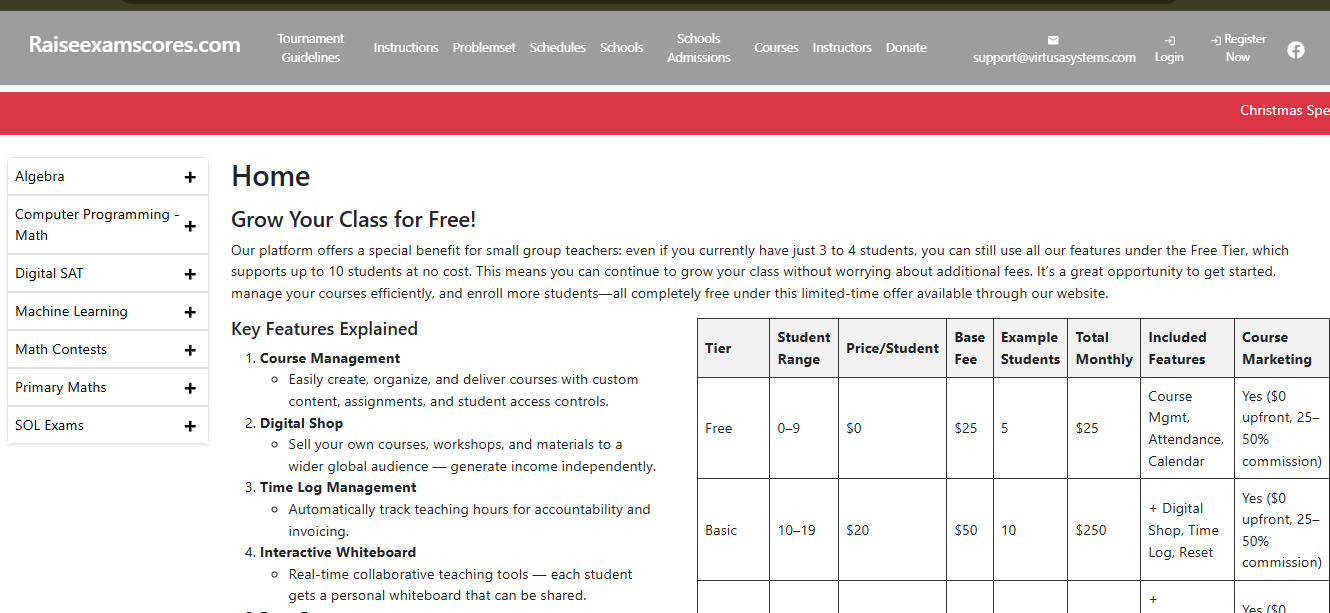
Go to https://raiseexamscores.com/ and click on Login from the top-right corner.
2) Select Registration Purpose
After visiting the website, choose who you are registering for: Advisor or Student.
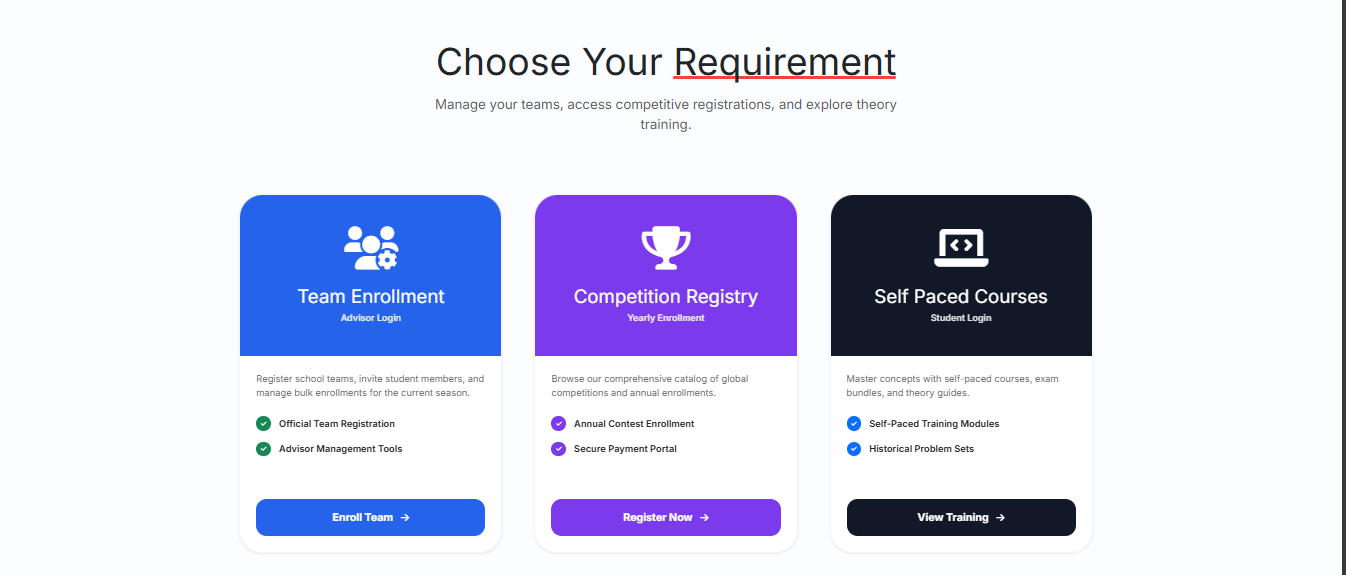
3) Register or Login as an Advisor
New advisors can create a new account.
Existing advisors can log in using credentials.
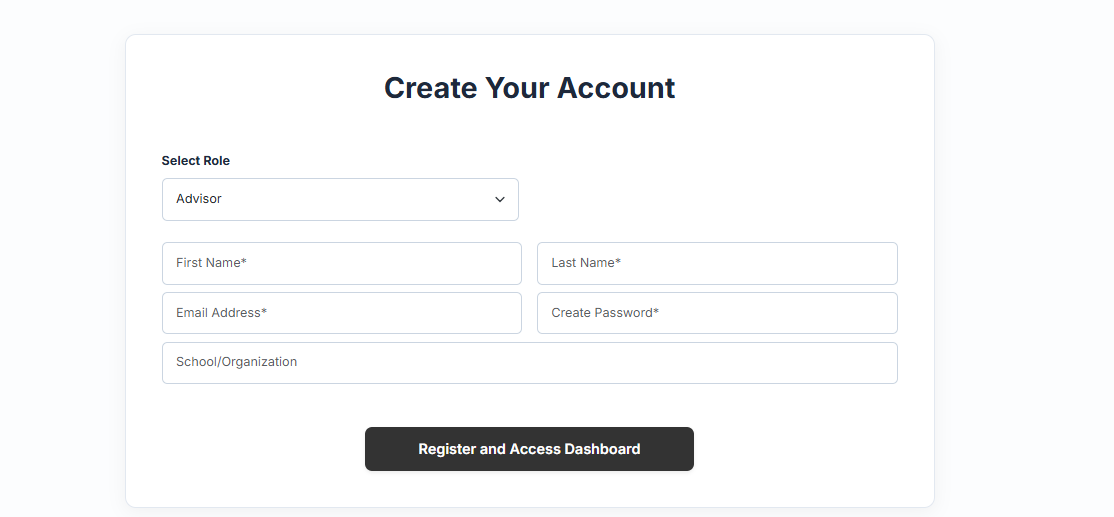
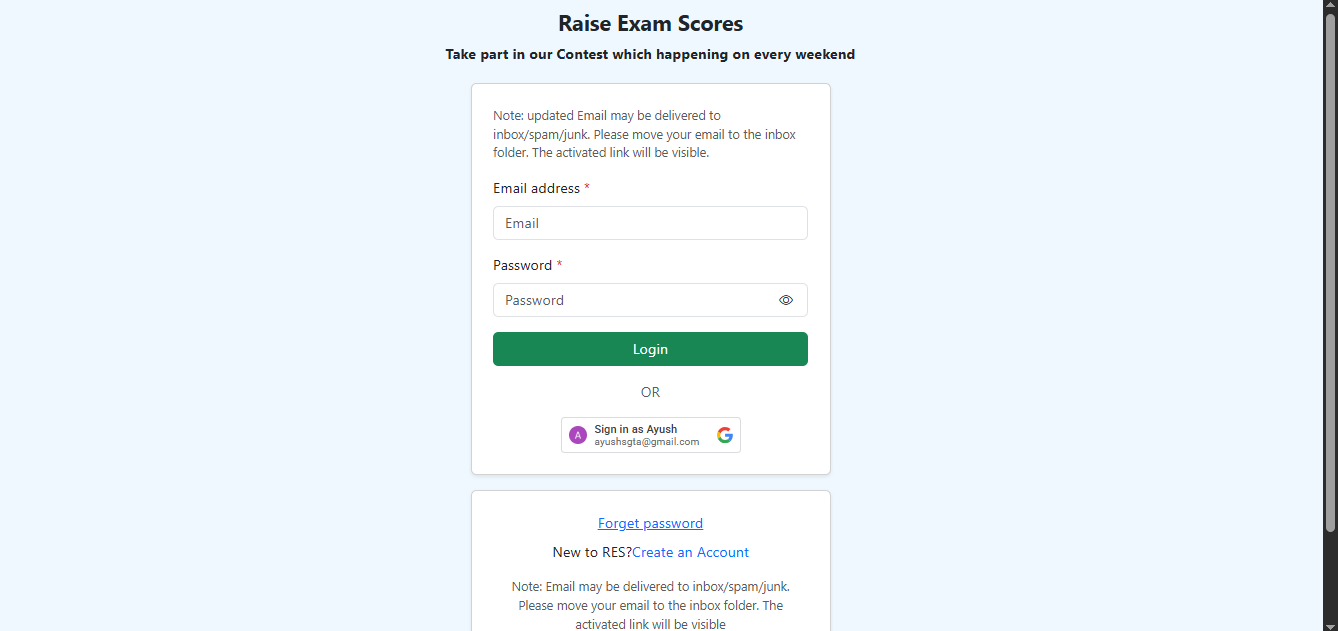
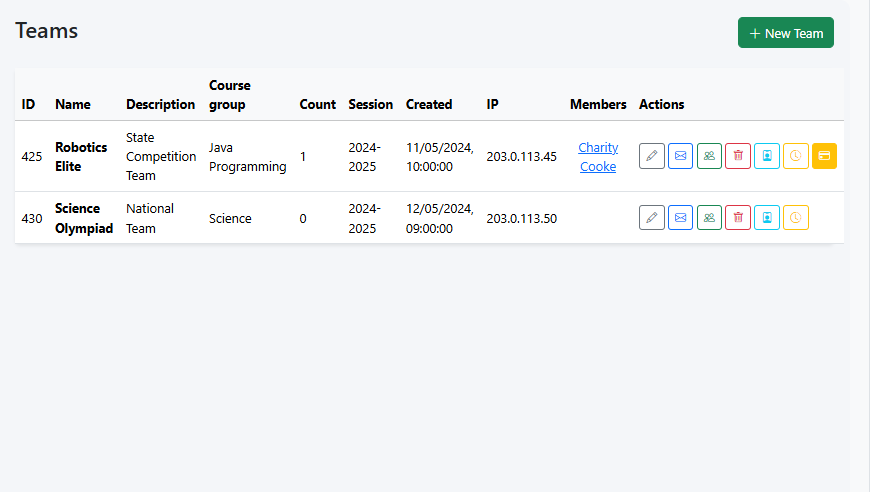
4) Advisor Dashboard - Navigate to Teams
After login, go to the Teams section in the Advisor Dashboard.
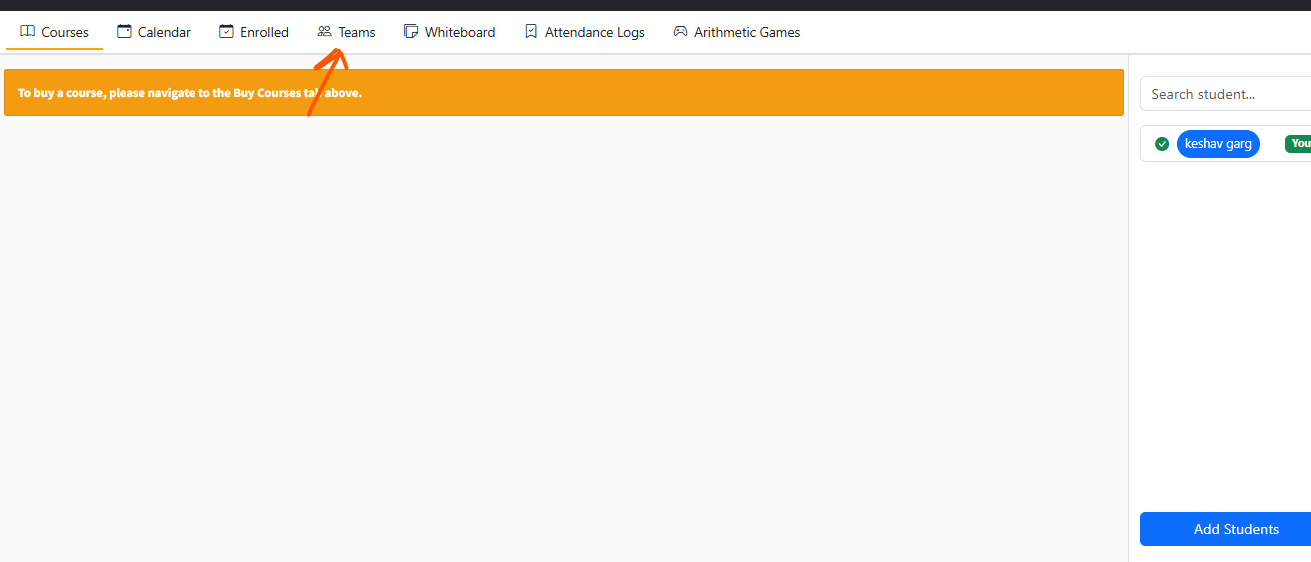
5) Create a Team
Click "New Team".
Enter team details.
Save the team successfully.
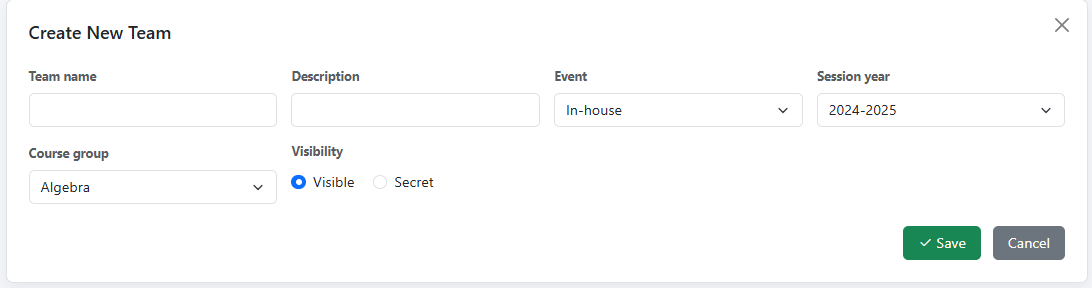
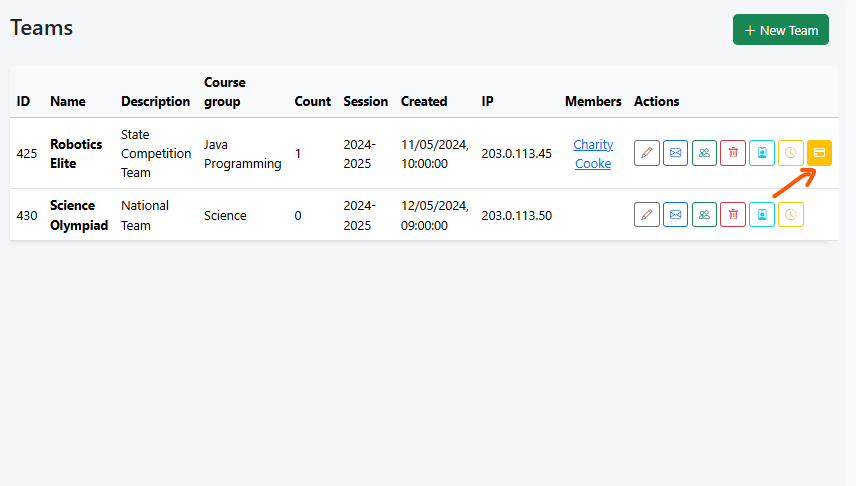
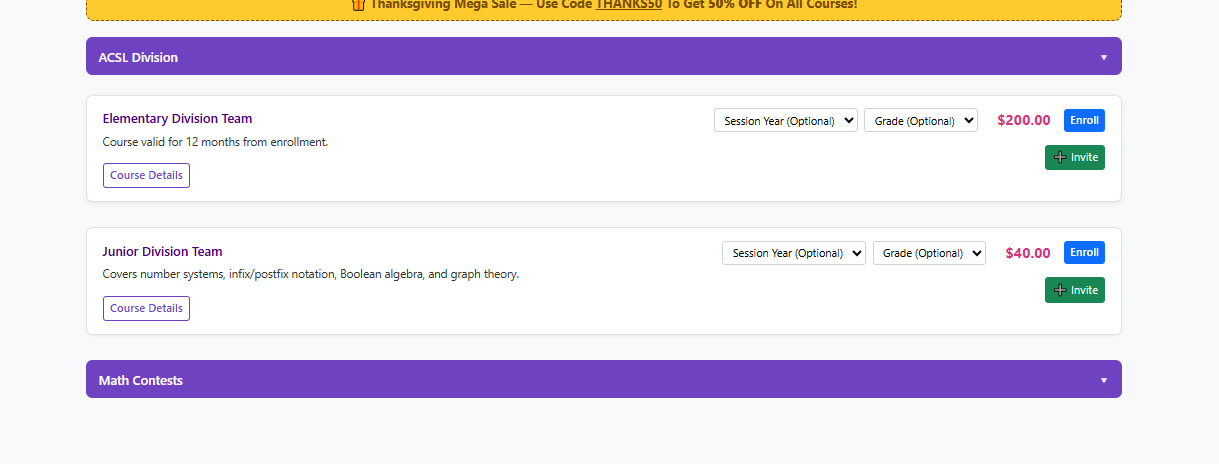
6) Enroll the Team
After creating the team, enroll the team in the system.
Enrollment must be done before proceeding to payment or adding members.
7) View Cart
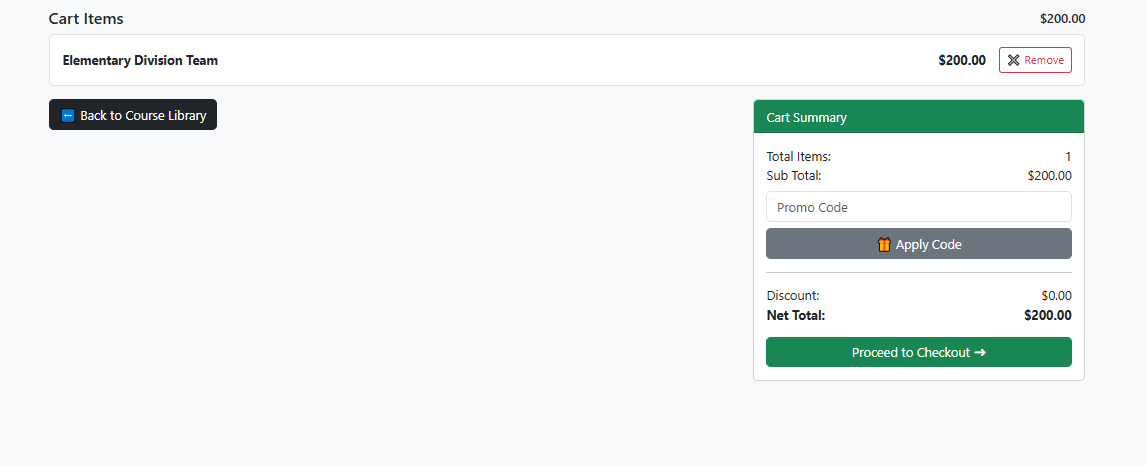
Before making payment, advisor can review the cart.
Ensure all teams and fees are correct.
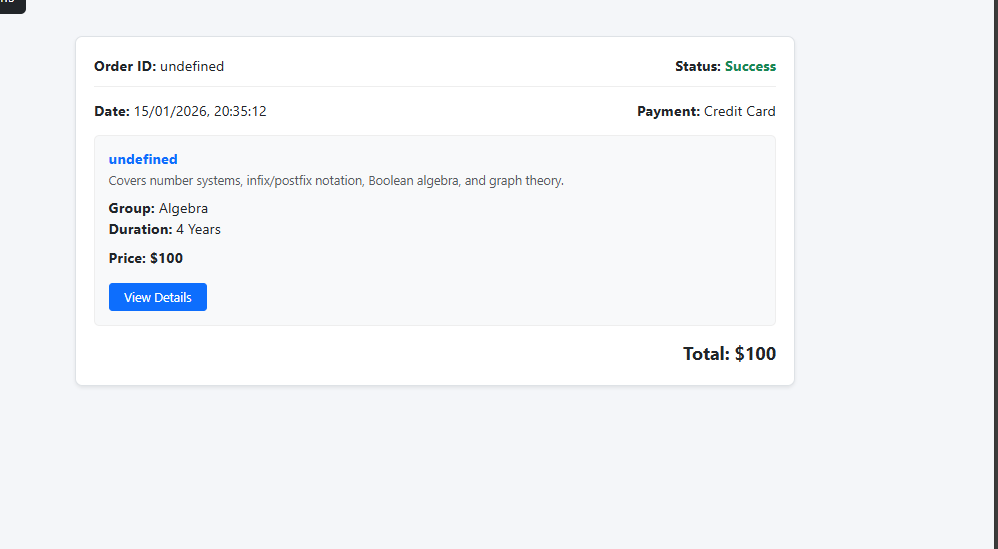
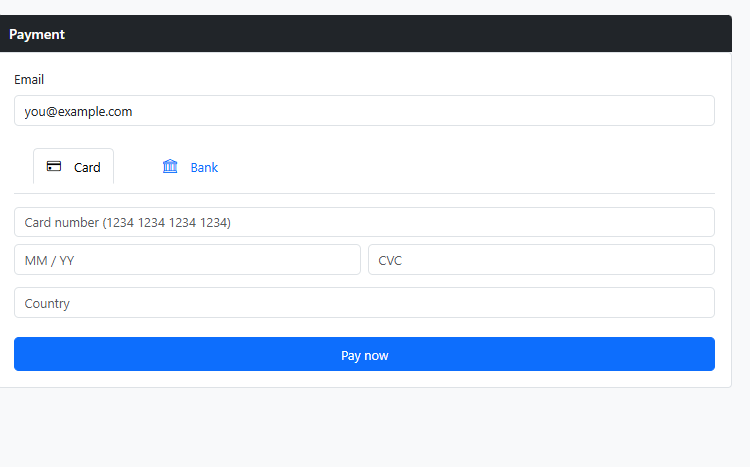
8) Make Team Payment
Complete the team registration/payment.
9) Add Team Members
Open the created team.
Add members by entering their name and email addresses.
Invitation emails will be sent to members automatically.
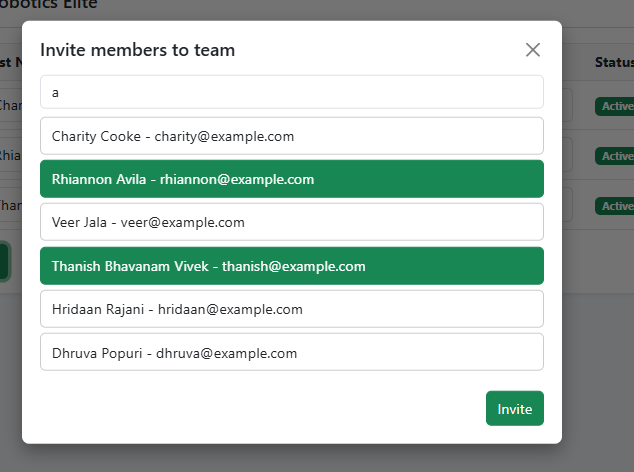
10) ) Advisor Sends Email Invitation
The advisor sends an email invitation to the students for the team.
They accept the invitation and join the team.
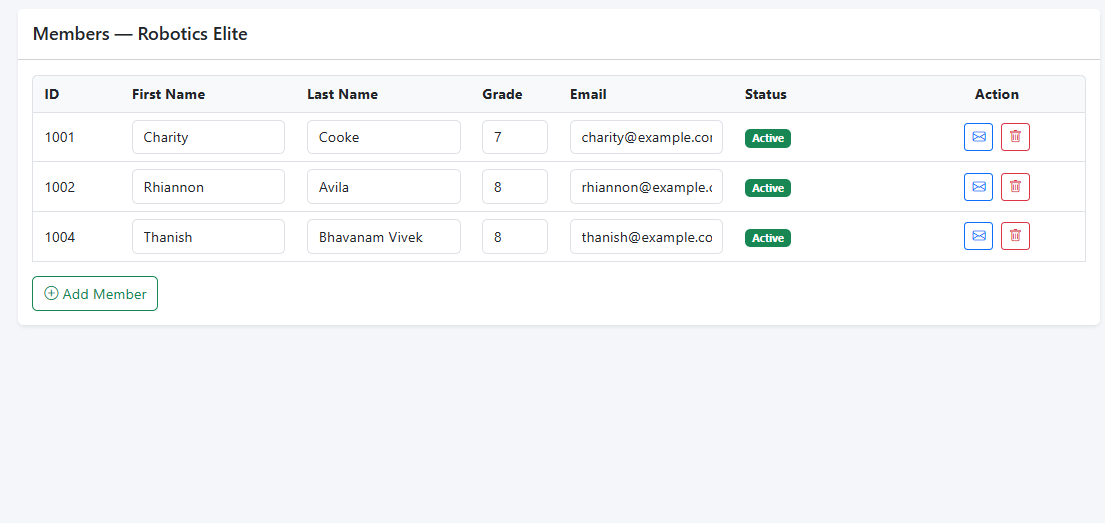
11) Advisor Views Team & Member Details
After students join, advisor can view full team info, participation status, and updates.
From here, they can edit or delete teams if needed.
Check team payment history and invoices.